
Overview
RBAC in CrewAI AMP enables secure, scalable access management through two layers:- Feature permissions — control what each role can do across the platform (manage, read, or no access)
- Entity-level permissions — fine-grained access on individual automations, environment variables, LLM connections, and Git repositories
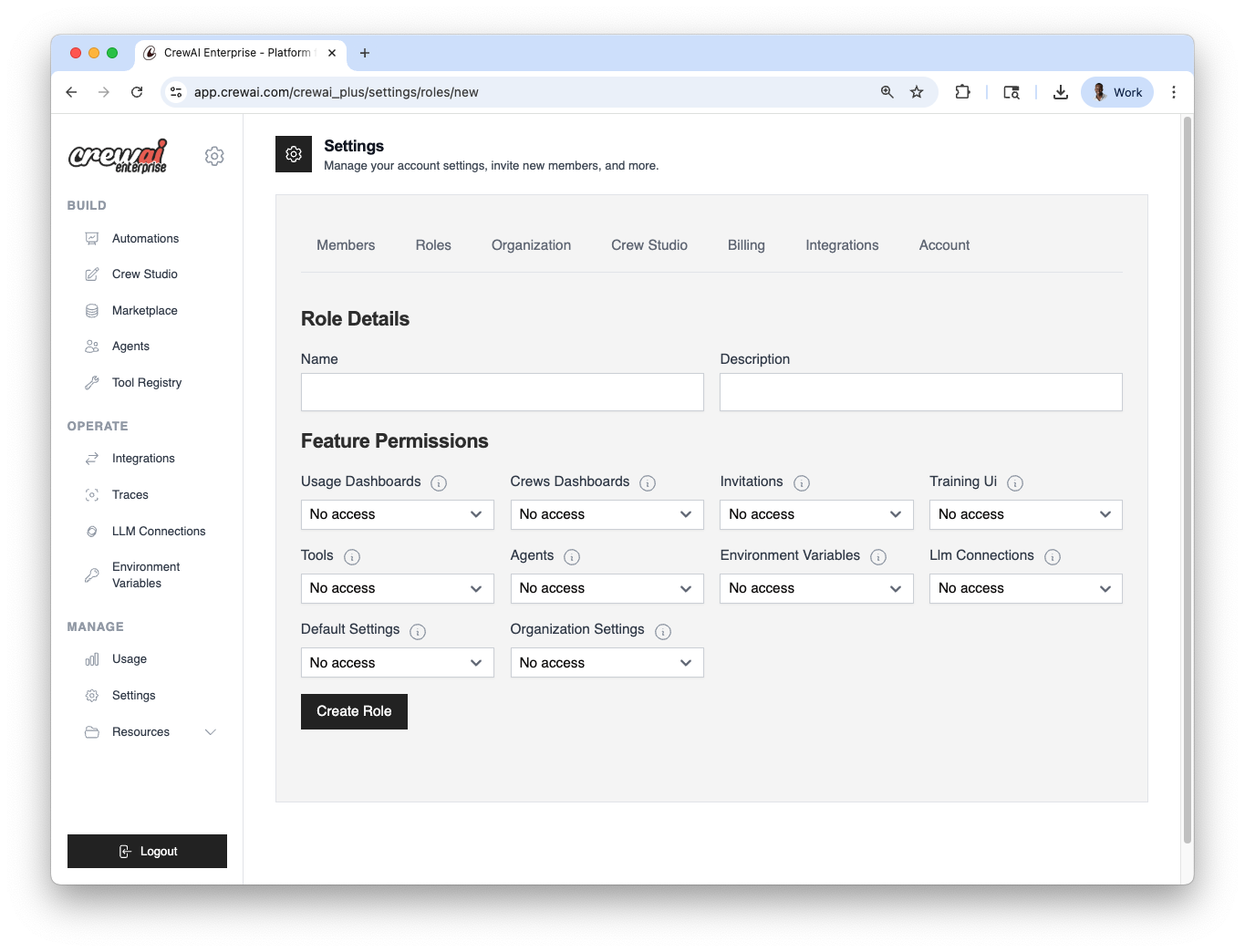
Users and Roles
Each member in your CrewAI workspace is assigned a role, which determines their access across various features. You can:- Use predefined roles (Owner, Member)
- Create custom roles tailored to specific permissions
- Assign roles at any time through the settings panel
1
Open Roles settings
Go to Settings → Roles in CrewAI AMP.
2
Choose a role type
Use a predefined role (Owner, Member) or click
Create role to define a custom one.
3
Assign to members
Select users and assign the role. You can change this anytime.
Predefined Roles
Configuration summary
Feature Permissions Matrix
Every role has a permission level for each feature area. The three levels are:- Manage — full read/write access (create, edit, delete)
- Read — view-only access
- No access — feature is hidden/inaccessible
Deploying from GitHub or Zip
One of the most common RBAC questions is: “What permissions does a team member need to deploy?”Deploy from GitHub
To deploy an automation from a GitHub repository, a user needs:crews_dashboards: at leastRead— required to access the automations dashboard where deployments are created- Git repository access (if entity-level RBAC for Git repositories is enabled): the user’s role must be granted access to the specific Git repository via entity-level permissions
studio_projects:Manage— if building the crew in Studio before deploying
Deploy from Zip
To deploy an automation from a Zip file upload, a user needs:crews_dashboards: at leastRead— required to access the automations dashboard- Zip deployments enabled: the organization must not have disabled zip deployments in organization settings
Quick Reference: Minimum Permissions for Deployment
Automation‑level Access Control (Entity Permissions)
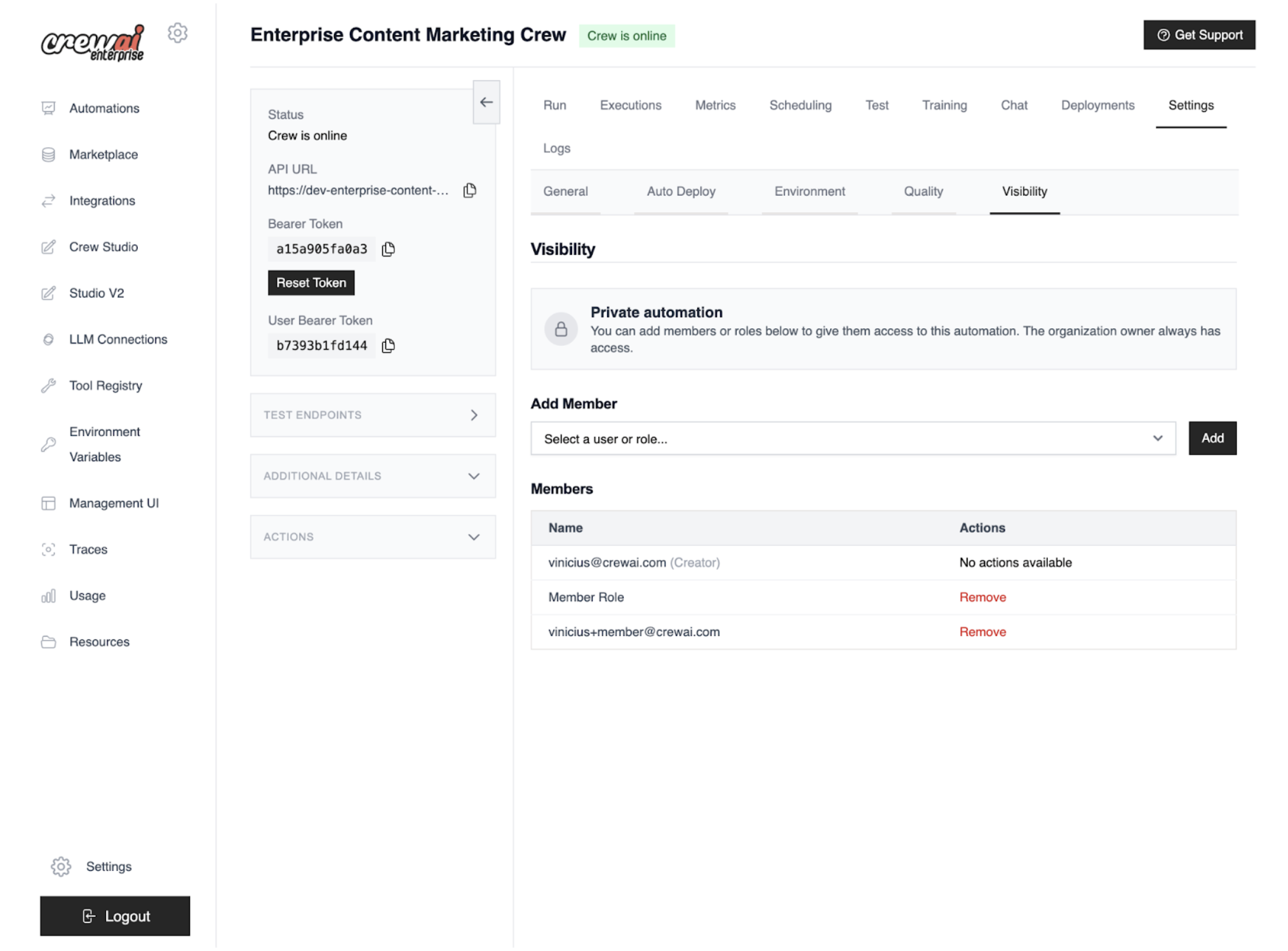
In addition to organization‑wide roles, CrewAI supports fine‑grained entity-level permissions that restrict access to individual resources.Automation Visibility
Automations support visibility settings that restrict access by user or role. This is useful for:- Keeping sensitive or experimental automations private
- Managing visibility across large teams or external collaborators
- Testing automations in isolated contexts
1
Open Visibility tab
Navigate to Automation → Settings → Visibility.
2
Set visibility
Choose Private to restrict access. The organization owner always
retains access.
3
Whitelist access
Add specific users and roles allowed to view, run, and access
logs/metrics/settings.
4
Save and verify
Save changes, then confirm that non‑whitelisted users cannot view or run the
automation.
Private visibility: access outcomes
Deployment Permission Types
When granting entity-level access to a specific automation, you can assign these permission types:Entity-level RBAC for Other Resources
When entity-level RBAC is enabled, access to these resources can also be controlled per user or role:Common Role Patterns
While CrewAI ships with Owner and Member roles, most teams benefit from creating custom roles. Here are common patterns:Developer Role
A role for team members who build and deploy automations but don’t manage organization settings.Viewer / Stakeholder Role
A role for non-technical stakeholders who need to monitor automations and view results.Ops / Platform Admin Role
A role for platform operators who manage infrastructure settings but may not build agents.Need Help?
Contact our support team for assistance with RBAC questions.